Onboarding
When first connecting to VulnPilot, you will be prompted to complete the onboarding process.
This process will help you set up your organization and get you started with VulnPilot.
Several sign up paths can lead you to the onboarding process:
- You got an invite to join VulnPilot from a Sentibee employee
- You signed up yourself
- You were invited to join a VulnPilot organization by your organization administrator
In the first two cases, you will be prompted to create your organization. In the third case, you will be prompted to join your organization using an invitation code you received by e-mail.
You received an invite to join VulnPilot from a Sentibee employee
When a Sentibee employee sends you an invite to join VulnPilot, you will receive an e-mail with a temporary password.
The e-mail will look like this:
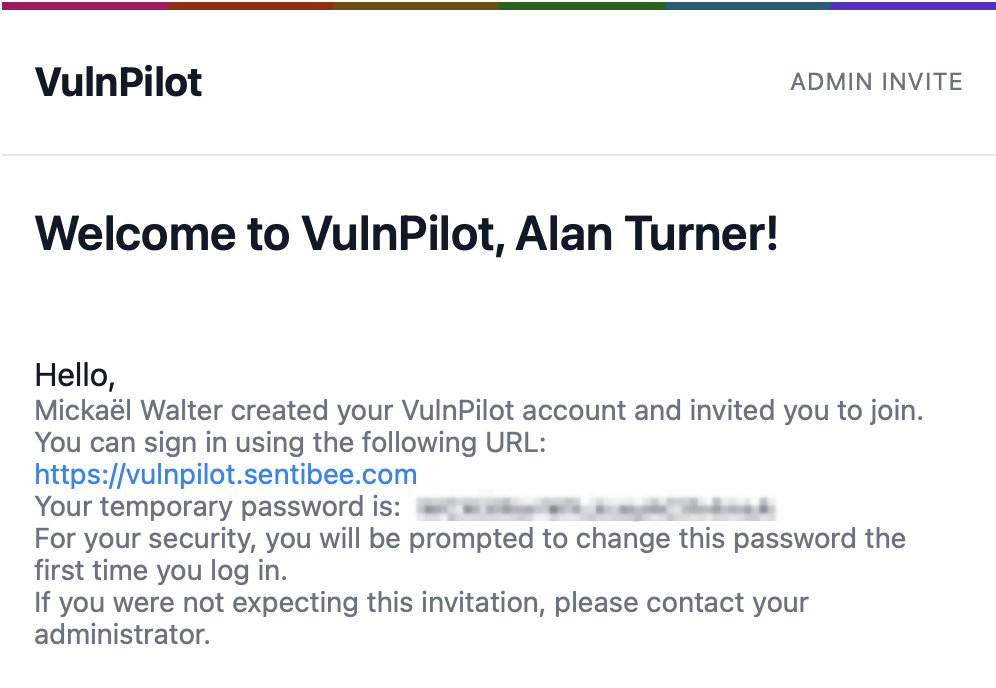
You can use this temporary password to sign in to VulnPilot , using your e-mail address as the username. When signing in for the first time, you will be prompted to change your password.
Your profile will be created automatically and filled with your details, but you will need to complete the onboarding process to set up your organization.
You signed up yourself
When you sign up yourself, you will be prompted to first complete your profile. You will then receive an e-mail with a temporary link ensuring the e-mail address you provided is valid.
After validating your e-mail address, you will be prompted to complete the onboarding process by creating your organization.
You were invited to join a VulnPilot organization by your organization administrator
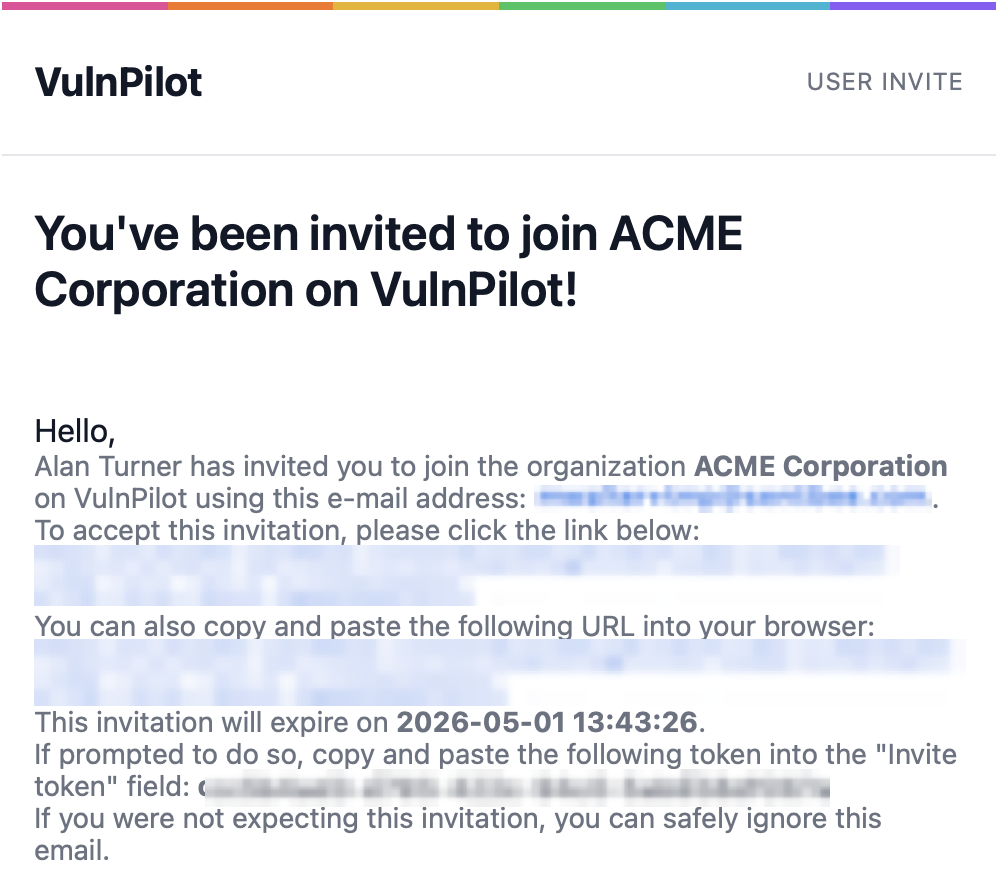
You will receive an e-mail with an invitation code to join your organization:
If you accept an invite to join a VulnPilot organization, you will be unlinked from your current organization.
If you do not have an account yet, you will be asked to sign up first.
When clicking the link in the e-mail, you will be prompted to enter the invitation code to join your organization. It is pre-filled with the code you received by e-mail but you can enter it manually if you want to.
Creating your organization in VulnPilot
You will be guided through the onboarding process by following the steps below.
If you are the first user of your organization, there is no need to enter any invite code. Just click “Next” to proceed.
Specify the size of your organization and the sector you operate in. This will help us tailor recommendations for your organization, like appropriate products to monitor for vulnerabilities or vulnerabilities that may be impactful for your organization.
This step will look like this:
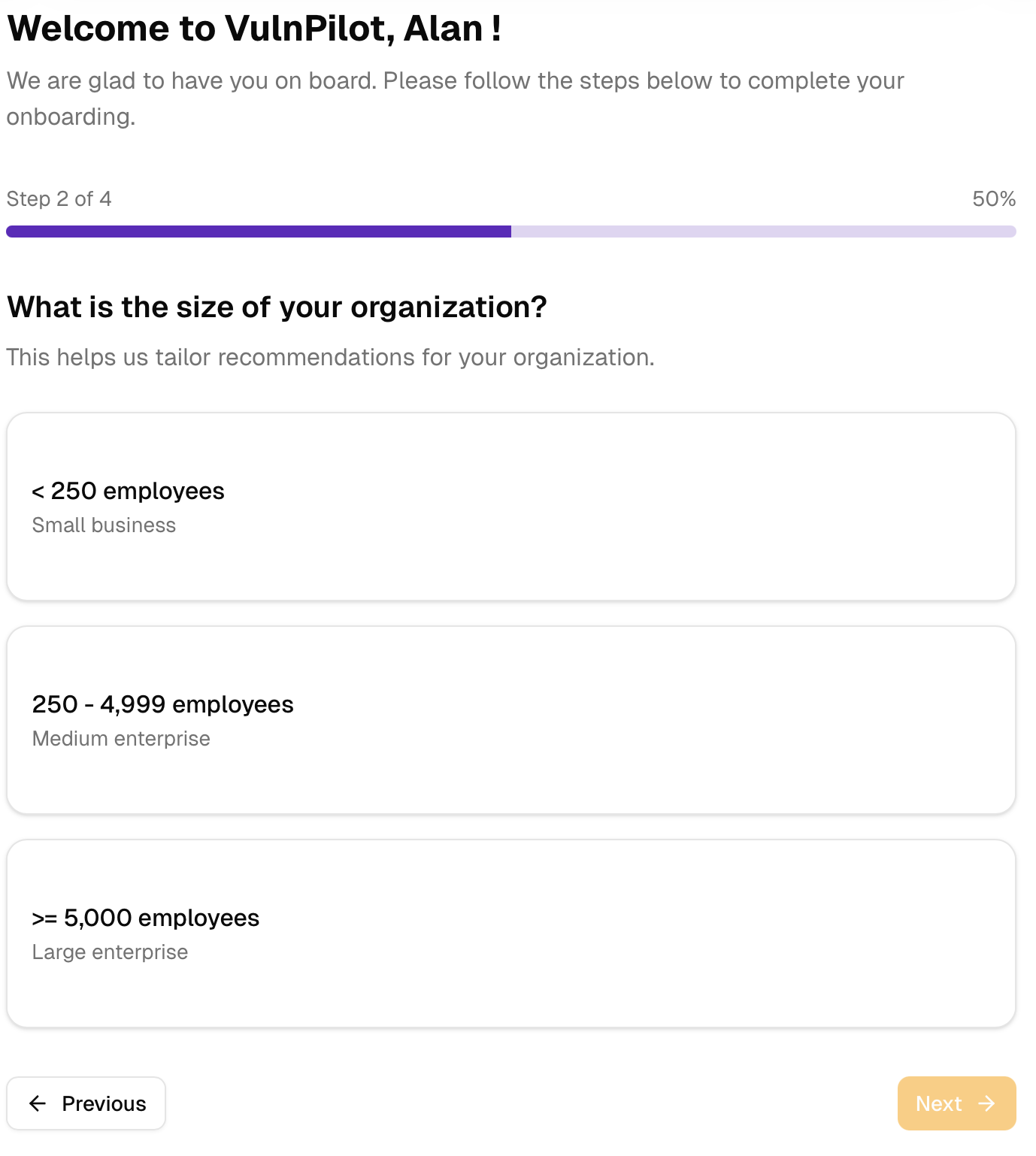
Once you have specified the size of your organization and the sector you operate in, you will be prompted to enter the name of your organization.
Congratulations! You have completed the onboarding process and can now start using VulnPilot. You will be redirected to the watchlist page to create your first watchlist.
Frequently asked questions
How to get an invitation code to join a VulnPilot organization?
If you are invited to join a VulnPilot organization by your organization administrator, you will receive an e-mail with an invitation code.
Your organization administrator is a member of your organization with the OrganizationAdmin role.
If you are the first user of your organization, you will not need to enter any invitation code. Just click “Next” to proceed.
How to change the name of my organization?
You can change the name of your organization by clicking the “Settings” button in the top right corner of the page and selecting “Organization”.